 Checkcraft
API test reports in HTML, TXT and JUnit XML
Get help with your first test →
A teammate sees a failed test but cannot tell which value differs. Preserve the assertion and enough context to reproduce the result.
Read the failed assertion
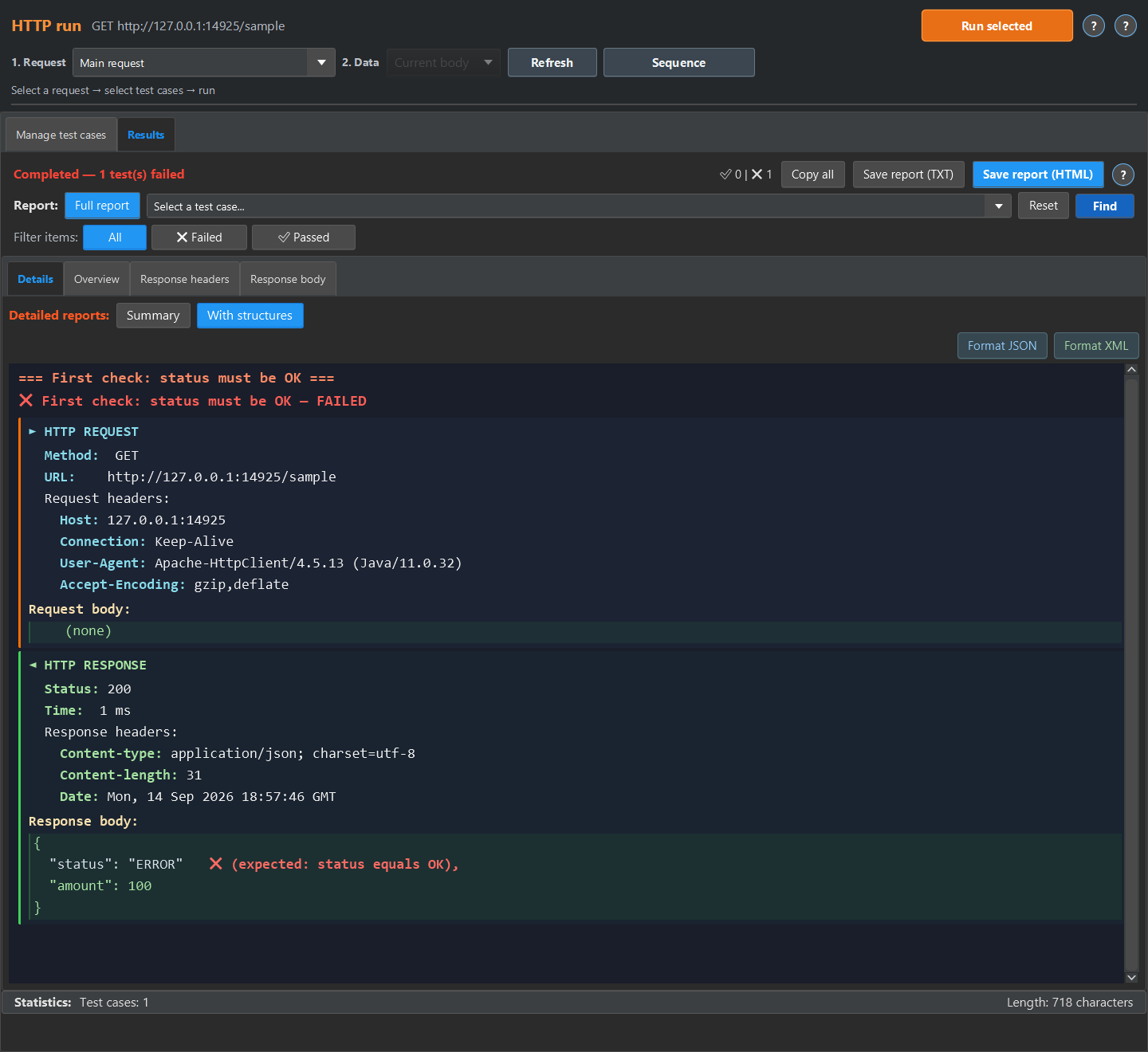
The sample expects status OK while the failing response contains ERROR. Compare the captured text reports below. Inspect expected and actual values rather than relying only on the overall result color.
Save an application report
After an HTTP run, open the results and use the HTML or TXT export action. Pro history comparison has a separate HTML export. Review the file for personal data and secrets before sharing, including response bodies.
Export JUnit XML from the CLI
The runner supports --report-junit, --report-json and --report-html. The example requires an installed checkcraft-cli, valid runner access and a bundle exported from the CI/CD panel. It does not create test cases.
checkcraft-cli --bundle checks.ccbundle.json --report-junit report-junit.xml --report-json report.json --report-html report.htmlRetain failed-run artifacts
Configure CI to keep reports when a job fails. JUnit XML feeds test result views, HTML supports human review and JSON enables downstream processing. Preserve a failure exit code. The Jenkins and GitLab guide includes integration examples.
Repeat the sample
The quick experiment below runs in the test case editor. The screenshots show the detailed report available in HTTP run or Log run. For HTTP run, return the sample JSON or XML from a local mock and run the imported case against it, then open Results, Details and With structures. For Log run, load the sample into a log source, enable No request, run the case, then open Details and Detailed.
These are existing synthetic fixtures and captured text reports, not a customer deployment.
Start with the linked example and compare its result with your own test requirement.